Control Your Spa from Your Phone: How to Connect Your Spa to Wi-Fi and Make the Most of the Smart App?
Control your Intex spa conveniently from your smartphone. Learn how to connect it to Wi-Fi and pair it with the Intex Link app to make the most of its smart features for an even more relaxing spa experience.
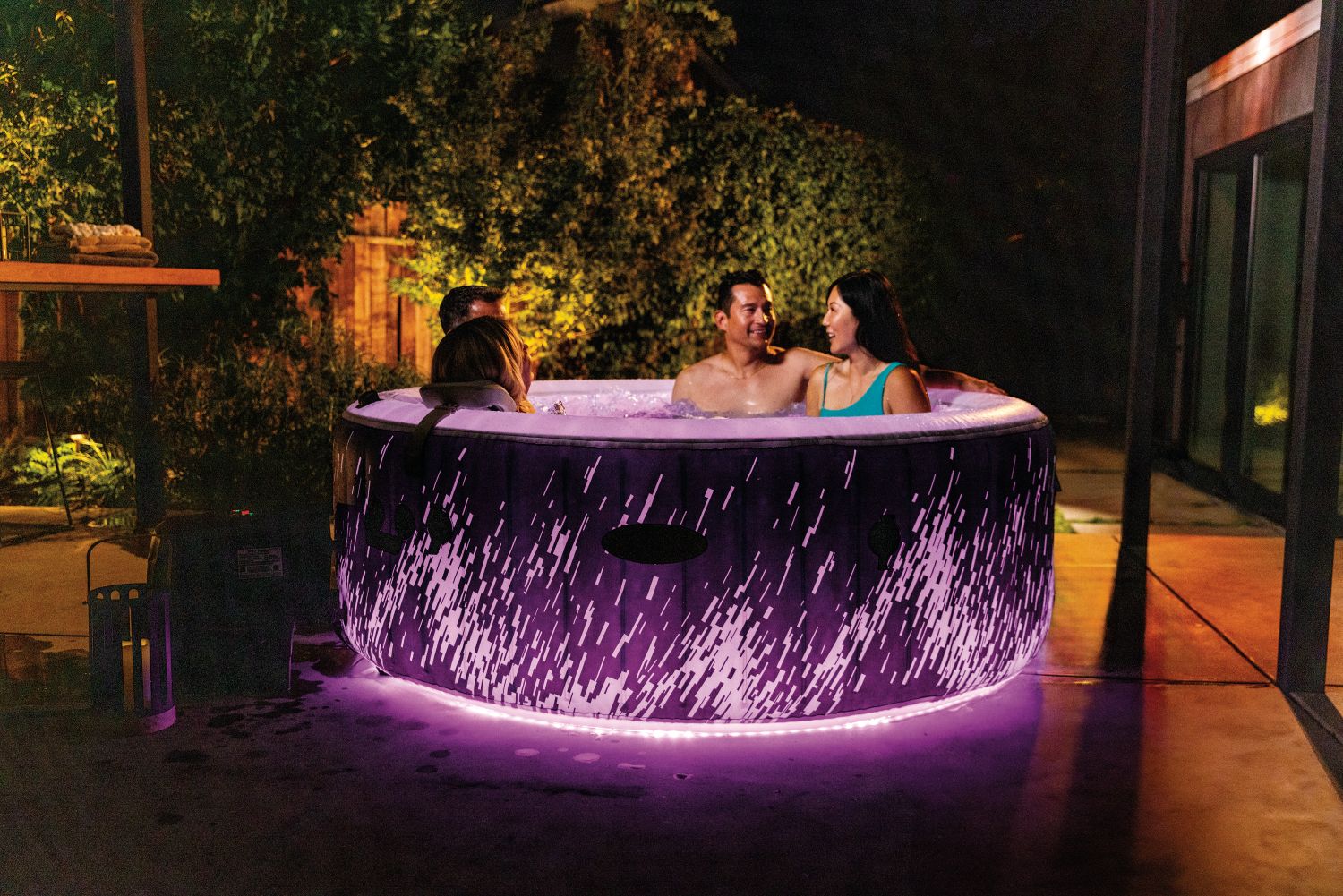
Would you like to control your spa conveniently from anywhere? With the Intex Link app, you can use your smartphone to adjust the water temperature, start the filtration system, or activate the jets on selected Intex spa models. In this article, we'll show you how to connect your spa to Wi-Fi, explore the app's features, and discover how smart control can make your daily relaxation even more enjoyable.
Why Control Your Spa from Your Phone?
With smart Wi-Fi control, the key functions of your spa are always at your fingertips and can be easily managed through the mobile app.
With the Intex Link app, you can:
- Turn your spa on or off
- Set your desired water temperature
- Control the filtration system
- Activate the bubble function or massage jets
- Set up automatic daily schedules to manage your spa's functions
This allows you to prepare the ideal conditions for relaxation before you even get home.
How to Connect Your Spa to Wi-Fi?
Connecting your spa to the app is quick and easy and only takes a few minutes.
- Download the Intex Link App
The Intex Link app is available to download free of charge from Google Play and the App Store. The app is available in two versions, so the first step is to check which version is compatible with your spa. Instructions on how to do this can be found in the Intex Customer Support Center.
- Create an Account
Once you've opened the app:
- Select your country.
- Enter your email address.
- Confirm the verification code sent to your email.
- Create a password and complete the registration.
- Pair Your Spa with the App
- Turn on the spa and the control panel.
- Press and hold the pairing button for approximately 5–10 seconds until you hear a beep.
- The Wi-Fi icon will begin flashing.
- In the app, tap "Add" and select the detected spa.
- Confirm your Wi-Fi network settings and complete the pairing process.
Once the connection is successfully established, you can conveniently control your spa over the internet.
What to Do If Your Spa Won't Connect?
If you're unable to pair your spa with the app, we recommend checking the following:
- Whether your spa is within range of the Wi-Fi signal
- Whether your Wi-Fi network supports the 2.4 GHz frequency band
- Whether your phone is connected to the same 2.4 GHz Wi-Fi network
- Whether your phone's operating system is up to date
- Whether the control panel is displaying error code E81
It may also help to disconnect and reconnect the spa's main control unit, then restart the pairing process. If you're still unable to pair your spa, don't hesitate to contact Intex Customer Support Center.
Intex PureSpa™ – Smart Control for Maximum Comfort
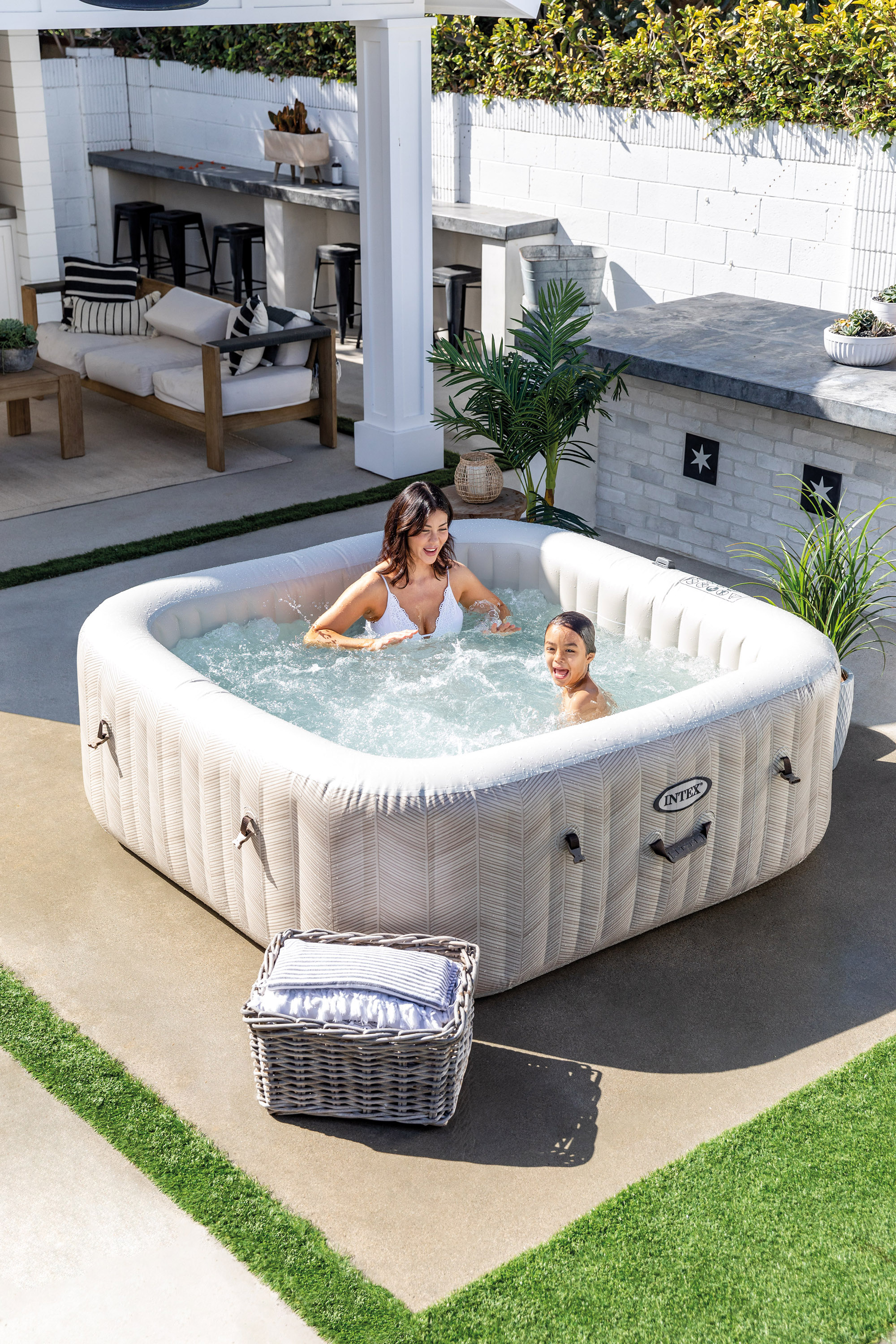
Selected Intex PureSpa models with Intex Link app support take home relaxation to the next level. With smart Wi-Fi control, you can easily adjust the water temperature, manage the filtration system, or activate the massage functions directly from your phone. Enjoy maximum comfort and have your spa ready whenever you want to relax.